Last mod: 2026.03.04
Network File System (NFS)
Prerequisites
Please note that this configuration allows any host on the internal network to access NSF without authentication. The shared directory name follows Kubernetes conventions but can be customized as needed to suit deployment requirements. The local network is configured as 192.168.3.0/24. The system is located on a separate SSD. An additional HDD is mounted as a shared drive via NFS.
The network consists of the following hosts:
| Role | Name | IP |
|---|---|---|
| NFS Client | msi | 192.168.3.22 |
| NFS Client | hp | 192.168.3.23 |
| NFS server that we will configure to share its disk | x510 | 192.168.3.24 |
NFS server installation (host 192.168.3.24)
Checking the UUID assigned to our disk partition:
blkid
It is assumed that the disk has not been mounted previously.
Add the following line to the file /etc/fstab (Replace <UUID_OF_MOUNTED_PARTITION> with the value from blkid command):
UUID=<UUID_OF_MOUNTED_PARTITION> /mnt/storage ext4 defaults,noatime,nofail,commit=120,x-systemd.device-timeout=30 0 2
Some parameters can be adjusted as needed to suit specific requirements.\
Create the directory:
sudo mkdir -p /mnt/storage
Reboot:
sudo reboot now
After the restart, we verify whether the disk has been correctly mounted. If the disk is mounted, proceed to install the NFS server:
sudo apt update
sudo apt install -y nfs-kernel-server
Add the following line to the /etc/exports file:
/mnt/storage/k8s-shared 192.168.3.0/24(rw,sync,no_subtree_check,no_root_squash)
It is also possible to restrict access to selected IP addresses:
/mnt/storage/k8s-shared 192.168.3.22(rw,sync,no_subtree_check,no_root_squash) 192.168.3.23(rw,sync,no_subtree_check,no_root_squash) 192.168.3.24(rw,sync,no_subtree_check,no_root_squash)
Where:
- rw – read and write access
- sync – changes are written to disk before acknowledgment
- no_subtree_check – faster operation
- no_root_squash – the client’s root user retains root privileges on the server (crucial in Kubernetes!)
Save the file and apply the changes:
sudo exportfs -ra
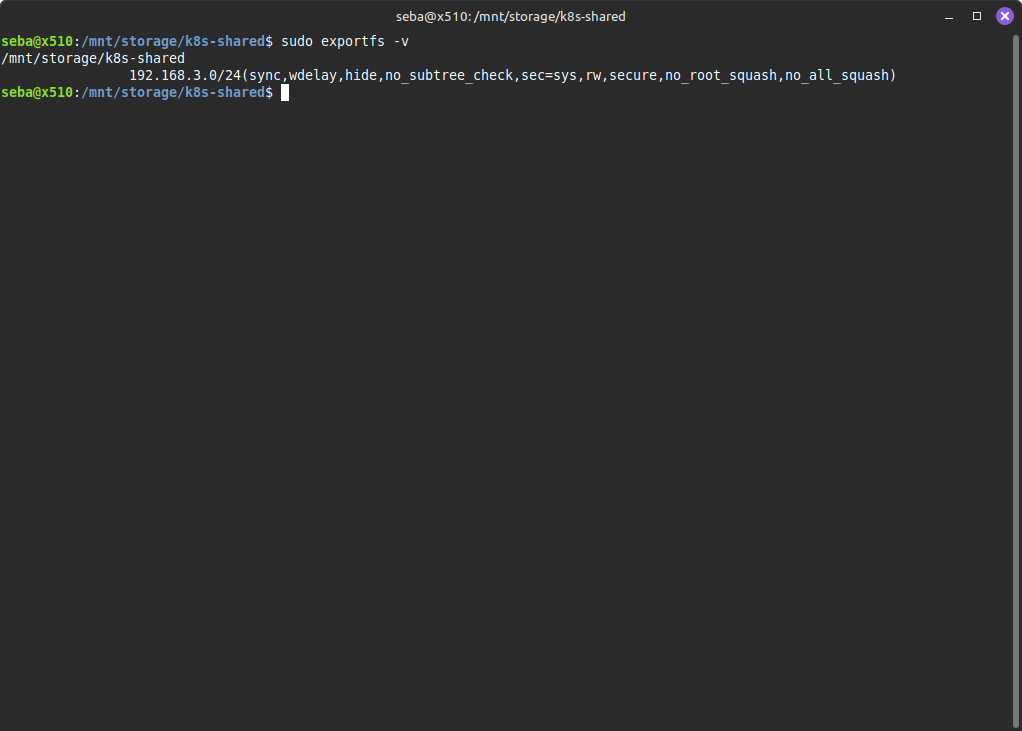
Verify that the export is visible:
sudo exportfs -v
Restart the host and verify again if the directory is visible:
sudo reboot now
sudo exportfs -v
NFS client installation on all nodes (hosts: 192.168.3.22, 192.168.3.23, 192.168.3.24)
All operations are repeated on every host, including the NFS server.
Install on all nodes, including the NFS server:
sudo apt update
sudo apt install -y nfs-common
Create the directory and set permissions:
sudo mkdir -p /mnt/storage/k8s-shared
sudo chmod 777  /mnt/storage/k8s-shared
sudo chown nobody:nogroup /mnt/storage/k8s-shared
Add the following line to the file /etc/fstab (only client nodes, without 192.168.3.24):
192.168.3.24:/mnt/storage/k8s-shared /mnt/nfs-k8s nfs4 _netdev,noauto,x-systemd.automount,x-systemd.device-timeout=30,timeo=10,soft,retry=3 0 0
Reboot:
sudo reboot now
Any file created or copied into the /mnt/storage/k8s-shared directory will now be visible on all configured nodes.
Warning: The mount operation occurs during system startup. Therefore, the NFS server must always be started first.